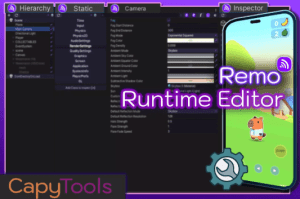
Remo is a powerful debug tool that allows you to inspect your game after deployment on a device, enabling extensive tests on the fly.
For more details about this asset: Click Here
This is a paid asset, but now you can download the “Remo – Remote Runtime Editor” for FREE. Please note that this package is provided solely for learning purposes or to test the product before purchase, and not for commercial use.
Remo – Remote Runtime Editor v1.1.2 (Latest version)
“If possible, please buy the package to support the developer”
Description
You can explore your entire scene, view and edit GameObjects, Components, Materials, and Scriptables Objects
It saves you hours by letting you tweak values, run tests, and make small modifications without needing to run a new build or redeploy.
Visualize and edit any properties, fields, structs, or arrays of any component.
Call methods and add components at runtime.
Inspect and tweak static classes in your codebase, effortlessly adjusting settings like Quality Settings or Render Settings in seconds.
View and edit materials, swap materials and shaders in real time.
Directly observe what’s happening behind the scenes with the Remote Camera window—similar to the Editor’s Scene View.
All these tools run directly from the Editor and require almost no setup.
[ Remote Hierarchy ]
View and edit your game scenes remotely.
Duplicate GameObjects, create new GameObjects or primitives, reparent, and delete GameObjects.
Search and Filter GameObjects by name or type.
[ Remote Inspector ]
Inspect and edit any GameObject. View and edit any field or property, just like in the Editor.
Move, scale, and rotate GameObjects.
View and edit serialized properties, fields, structs, arrays, and lists.
Filter properties and fields using the search bar.
Edit GameObject names, tags, and layers.
Change object references using drag-and-drop from the remote hierarchy.
Upload assets from your Editor project and assign to components and class fields.
Call any method and receive the return value.
Add or remove components.
View and edit ScriptableObjects.
View and edit materials, change materials, and swap shaders in real time. **
Upload a new shader or material instantly—no rebuild required.
[ Remote Camera ]
Visualize your game and navigate the scene as you would in the Editor’s Scene View, using keyboard and mouse controls.
Click any GameObject (with a collider) to highlight it in the remote hierarchy.
Anchor to any GameObject in the hierarchy.
Double-click a GameObject in the remote hierarchy to fly to it.
View FPS.
[ Static Window ]
Inspect and edit any static class properties or fields, and call static methods remotely.
Easily test runtime settings such as Quality and Render Settings.
Invoke methods, also from your own static classes (e.g., CheatsManager).
[ Remote Console ]
Fetch remote player logs.
[Swap Shader Tool]
Replaces all runtime instances of a shader with a new one.
Usage:
1 – Add ‘RemoServer’ Prefab to your main scene in your game.
( The prefab is located in Assets/Plugins/CapyTools/Remo/Prefabs/RemoServer.prefab )
2 – Build a Development Build*, Run your Player and wait for initialization.
3 – Open Window/Remote Runtime Editor/Remote Hierarchy, and select your device.
4 – Refresh and inspect your game.